Team6 · October 13, 2026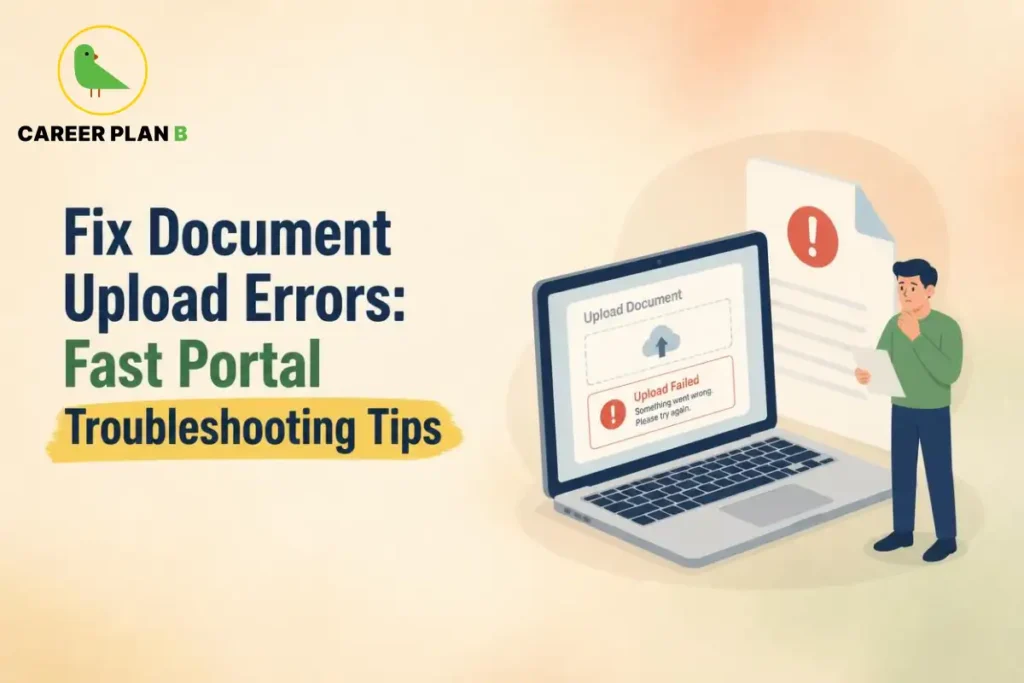
Introduction
It is 11 PM. Your CUET 2026 counselling deadline is tomorrow morning. You have spent the last two hours scanning, resizing, and renaming your documents. And then, just as you finally click “Upload,” the portal throws an error at your face. No explanation. Just a red message and a spinning wheel that leads nowhere. If this sounds familiar, you are not alone. Document upload errors in CUET 2026 counselling are one of the most common and most stressful problems students face during the admission process.
The good news? Almost every single error has a fix, and most of them take less than ten minutes. This blog will walk you through exactly why the portal rejects documents, how to fix each type of error step by step, what a complete document checklist looks like, and what to do when you have tried everything and still feel stuck. Let’s sort this out together.
Why Does the CUET 2026 Portal Reject Your Documents?
Here is something nobody tells you clearly: the NTA portal does not just check whether you uploaded a file. It checks the file format, the file size, the resolution, and whether the content is readable. If even one of these does not match what NTA expects, your upload will fail sometimes with a vague error message, and sometimes with no message at all.
Think of it like trying to fit a square peg into a round hole. Your document might be perfectly valid, but if it is not shaped the way the portal expects, it simply will not go in.
The Most Common Reasons Students Face Upload Errors
These are the reasons students hit errors most frequently during CUET 2026 portal submission:
- The file is in PNG, PDF, or WEBP format instead of JPG/JPEG
- The photo or signature exceeds the allowed file size
- The scanned image is blurry or too dark
- The browser has outdated cache or cookies
- The internet connection drops mid-upload
- The document does not match what was entered in the form (name, date of birth, etc.)
Is It Your File or the Portal? How to Tell the Difference
This is an important question. If the error appears immediately when you click “Upload,” it is almost always a file issue — wrong format, wrong size, or low quality. If the upload seems to go through but your application status later shows “document not as per specification,” that is a server-side rejection and requires you to re-upload within the correction window.
Rule of thumb: always verify your files before you log into the portal. Do not discover the problem at the upload step.
Step-by-Step Fix for Every Document Upload Error
Fix 1 — File Format Not Accepted
NTA’s CUET portal accepts only JPG or JPEG format for photographs and signatures. It does not accept PNG, PDF, BMP, or WEBP. Many students make the mistake of saving their photo from WhatsApp or Google Photos, which automatically re-encodes images as WEBP. Even if it looks like a normal photo on your phone, the portal will reject it.
How to fix it:
- Open your browser and search for a free “JPG converter” tool
- Upload your image and convert it to JPG format
- Download the converted file and check the extension — it should end in .jpg or .jpeg
- Now try uploading again
For official format requirements, always refer to the NTA official website and the CUET UG portal.
Fix 2 — Document Size Limit Exceeded
This is the most common CUET registration troubleshooting issue. NTA has set very specific size limits for each document type:
| Document | Accepted Format | File Size Limit | Common Error | 2026 Portal Compliance & Validation Tips |
|---|---|---|---|---|
| Passport-size Photograph | JPG / JPEG | 10 KB to 200 KB | Phone photos often exceed 2–5 MB; incorrect aspect ratio | Ensure white/light background with 80% face coverage; compress using standard tools to avoid upload rejections. |
| Signature | JPG / JPEG | 4 KB to 30 KB | High-resolution scans go over size limit or blur when downscaled | Sign with black/blue ink on white paper; crop tightly to avoid whitespace padding issues. |
| Identity Proof (non-Aadhaar) | JPG / JPEG | 10 KB to 200 KB | Uploading unsupported PDF format or excessively large scans | Use Voter ID, PAN, or Passport; ensure all text and photo details are crisp and legible. |
| Disability / UDID Certificate | 50 KB to 300 KB | Uncompressed multi-page scans too large for portal gateway | Merge multi-page medical boards into a single compressed PDF; verify certificate validity before submission. |
How to fix it:
- Search for a free “image compressor” or “PDF compressor” in your browser
- Upload your file and reduce it to within the required range
- Download the compressed file
- Confirm the size before uploading — right-click the file, click “Properties,” and check the size
Fix 3 — Blurry or Rejected Scans
The NTA portal runs an automatic check for image clarity. If your photo or signature is blurry, too dark, or has a distracting background, it will be rejected even if the format and size are correct. This happens most often when students take a photo using their phone camera, or scan in a dimly lit room.
How to fix it:
- If scanning: set your scanner to “True Colour” mode and 200 DPI resolution
- If using a phone camera: use natural light, hold the camera steady, and avoid shadows
- Your photograph must show at least 80% of your face — no masks, no sunglasses, no caps
- Background must be white or light plain colour
- Your signature must be done in black or blue ink on plain white paper
Fix 4 — Browser and Cache Issues
Sometimes the problem is not your file at all. It is your browser. Old cache data or an outdated browser can cause the portal to freeze, throw upload errors, or not show the “Upload” button at all.
How to fix it:
- Switch to Google Chrome, Mozilla Firefox, or Microsoft Edge — these are the recommended browsers for the NTA portal
- Clear your browser cache: go to Settings, find “Clear Browsing Data,” select “All Time,” and clear cache and cookies
- Disable any browser extensions or ad-blockers temporarily
- Refresh the page and try again
- If you are using a mobile phone, switch to a laptop or desktop if possible
Fix 5 — Poor Internet or Timeout Errors
Large files on a slow connection are a recipe for a counselling form submission error. The portal times out mid-upload and the file never goes through but the system may show the upload as “pending” or simply fail silently.
How to fix it:
- Connect to a stable Wi-Fi connection before uploading
- Avoid uploading during peak hours like late evenings when server traffic is high
- Keep your file sizes as small as possible within the allowed range — this speeds up the upload significantly
- Do not close the browser tab while uploading
Have Any Doubts?
What to Do When Nothing Works — Escalation Steps
You have tried every fix. You have changed browsers, compressed your files, converted formats, and still the portal will not cooperate. Here is what to do next.
Using the Official NTA Helpdesk
NTA has an official help desk specifically for CUET UG candidates. Do not waste time on unofficial numbers or random websites.
- Phone: 011-40759000 / 011-69227700
- Email: cuet-ug@nta.ac.in
- Timings: Monday to Friday, 9:30 AM to 5:30 PM
- Official portal: https://cuet.nta.nic.in/
When you call or email, keep your application number ready. Be specific about the error message you are seeing. Taking a screenshot of the error before contacting it helps the support team understand and resolve your issue faster.
Raising a Grievance on the Portal
If your application status reflects a document rejection even after uploading correctly, you can raise a formal grievance. Log into your CUET account on https://cuet.nta.nic.in/ , look for the grievance or correction window section, and submit your concern with supporting screenshots.
NTA typically opens a correction window after the application period. Keep an eye on official announcements on nta.ac.in so you do not miss it.
How Career Plan B Helps
Career Plan B helps students navigate CUET 2026 counselling with clarity, structure, and support—especially when technical issues create added stress:
- Personalized Career Counselling: Helps students understand their options clearly and make informed decisions based on their strengths, interests, and long-term goals.
- Psycheintel & Career Assessment Tests: Provides data-backed insights into aptitude, personality traits, learning styles, and suitable academic and career pathways.
- Admission & Academic Profile Guidance: Supports students with step-by-step admission assistance, including document preparation, profile building, portal navigation, and resolving common technical errors during counselling.
- Career Roadmapping: Helps students create a structured long-term plan that connects their current admission journey with future academic and professional aspirations.
- End-to-End Guidance: Assists students throughout CUET 2026 counselling so technical glitches, portal issues, or deadline pressure do not come in the way of securing the right university fit.
For Latest Information
Frequently Asked Questions
Q1. Why does the CUET portal keep showing “invalid file format” even though I uploaded a JPG?
This often happens when the file was saved from WhatsApp, Google Photos, or a screenshot, which re-encodes it as WEBP despite showing a .jpg extension. Open the file on your computer, save it fresh as JPG using the Paint or Photos app, and re-upload. Always confirm the actual file type, not just the name.
Q2. My photo is within 200 KB but the portal is still rejecting it. What do I do?
Check the dimensions. NTA requires the photograph to be approximately 200×230 pixels. A file can be small in size but incorrect in dimensions, causing the portal’s automated validation to reject it. Use a free online image resizer to set the exact dimensions before uploading.
Q3. Is there a last date to fix document upload errors in CUET 2026 counselling?
NTA usually provides a correction window after the application period ends. The exact dates are announced on nta.ac.in. Do not wait for this window — try to fix errors as soon as you spot them during the original application period itself.
Q4. Can I upload my Aadhaar card as a PDF for identity proof?
No. If you are uploading a non-Aadhaar identity proof, NTA requires it in JPG/JPEG format between 10 KB and 200 KB. Only disability/UDID certificates are accepted in PDF format. For Aadhaar, DigiLocker integration may be available to check the portal instructions at the time of filling your form.
Q5. The portal is not loading the upload button at all. What should I do?
This is typically a browser or cache issue. Clear your browser cache, switch to Google Chrome or Mozilla Firefox, disable all extensions, and try again. If the problem persists, try from a different device or network. Avoid using mobile browsers for document uploads where possible.
Conclusion
Document upload errors in CUET 2026 counselling are frustrating, but they are fixable every single one of them. The key is to not panic, work through the checklist, and address the issue at its root rather than just uploading the same file again and again hoping for a different result. Most students who face these errors resolve them within minutes once they know exactly what to look for.
Your admission journey should not get stuck on a technical hurdle. You have worked too hard for that. Take a deep breath, go through each fix in this guide, and if something still does not work, reach out to NTA, to someone you trust, or to a counsellor who can guide you. The portal is just a door. And every door has a key.